TL;DR: If reset, WinRE, and Intune wipe all fail on a Dell Laptop or Workstation, try switching Storage from RAID to AHCI in BIOS before trying reset or OS recovery again.
The problem
On an old work Dell device (e.g. Dell Micro, Latitude, Precision), Windows Reset and reimaging kept failing with:
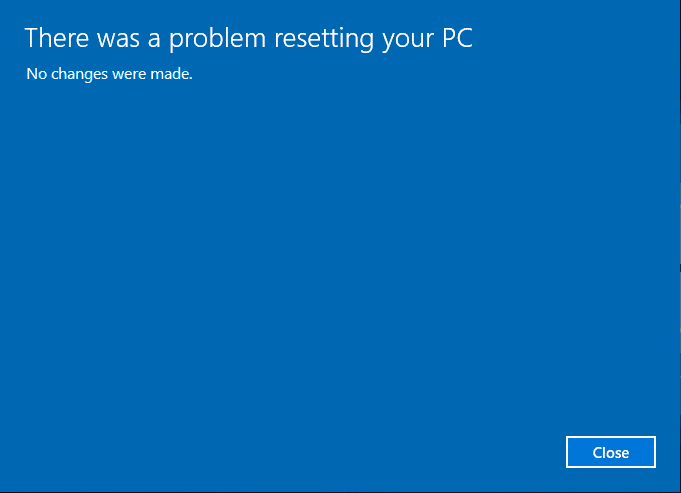
There was a problem resetting your PC. No changes were made.
We needed to reimage the machine, but nothing worked.
What we tried (and didn’t fix it)
dism /online /cleanup-image /restorehealth
sfc /scannow
Startup Repair from WinRE:
Settings → System → Recovery → Advanced Startup → Restart now → Troubleshoot → Advanced options → Startup Repair
Reset from WinRE instead of Settings:
Hold Shift → Restart → Troubleshoot → Reset this PC → Keep my files or Remove everything
Wiping/reimaging from Intune
None of that resolved the reset failure or boot loops.
The cause
The issue was tied to Dell’s RAID/storage configuration and drivers. With storage in RAID mode, Reset and SupportAssist OS Recovery were hitting boot loops and “problem resetting your PC” failures. This requires that you load the drivers into WinRE which no one has time for!
The FIX! What actually worked..
Change storage mode in BIOS from RAID to AHCI before running Reset or OS recovery.
Reboot and enter BIOS Settings (typically F12 at the Dell logo).
Find the Storage (or SATA / Storage Configuration) section.
Change the mode from RAID to AHCI.
Save and exit.
Run Reset this PC or SupportAssist OS Recovery again (or reimage via your normal process).
After switching to AHCI, reset and OS recovery completed successfully and we could reimage the machines without the previous failures.